



Shopify Email is now called Shopify Messaging. It comes with every paid Shopify plan, and its editor builds emails from blocks you stack and fill in. It gets the job done for most store owners. As a designer, I hit its limits fast. I find it even more limited than other email builders.
So I design the email in Figma, export it with Sendra, and paste the code into Shopify. Here's how, step by step.
Who this is for
Designers who design in Figma and build emails, for their own store or for a client's. If you run a store and you're happy with drag and drop, Shopify's editor is fine. And none of this is only for Shopify: Shopify takes your own code, like most email platforms do.
Why design it in Figma
Figma is where everything already lives: your brand, your assets, your other designs. You're comfortable there and you're fast there. You can try a few versions of an email and see what works. And you have far more freedom than a drag-and-drop builder gives you.
What you need
- A paid Shopify plan. A free trial can't send: Shopify shows "Shopify Messaging is not available with your free trial". You can still paste your email on a trial and look at Shopify's preview.
- Shopify Messaging. It's under Apps in your Shopify admin.
- Your email in Figma. Design it with auto layout.
- Sendra. It turns your Figma frame into email HTML.
Step 1: Add Shopify's tags in Figma
Shopify needs two tags in every email you code yourself. Its code box tells you the moment you open it: "Please note that templates must include {{ unsubscribe_link }} and {{ open_tracking_block }} variables."
Unsubscribe. Type "Unsubscribe" in your footer as its own text layer. Select it, and in Sendra's Customize tab put {{ unsubscribe_url }} in its Link field. Shopify accepts either unsubscribe tag, and this one is made for a link.
Open tracking. I thought Shopify would add this one for me. It doesn't. Type {{ open_tracking_block }} as the text of its own text layer, at the very bottom of the email, in a small font. Shopify swaps it for nothing you can see, so a small one won't touch your design. Keep it as text. The first time, I put it in a link, and that link just reloaded the page.
Names and your store. Type {{ customer.first_name | default: "there" }} where you want the first name. Customers without one see "there". I sent it to myself as a subscriber with no name, and it said "Hi there". {{ shop.name }} and {{ shop.address.city }} fill in from your store details. In my test the city stayed empty until I added my store address in Shopify's Settings.
Step 2: Export with Sendra
Turn on Host images online in Sendra's export window. Pasted code carries no image files, so every image has to be online already. Then click Copy HTML.
Before you go to Shopify, you can send yourself a test from Sendra. It works on the free plan, so you can check how the email looks on your computer and your phone. The tags show as you typed them, because filling them in is Shopify's job.
Step 3: Paste it into Shopify
- In your Shopify admin, go to Apps, then Messaging, and click Create campaign.
- Choose Code your own and paste the HTML you copied from Sendra.
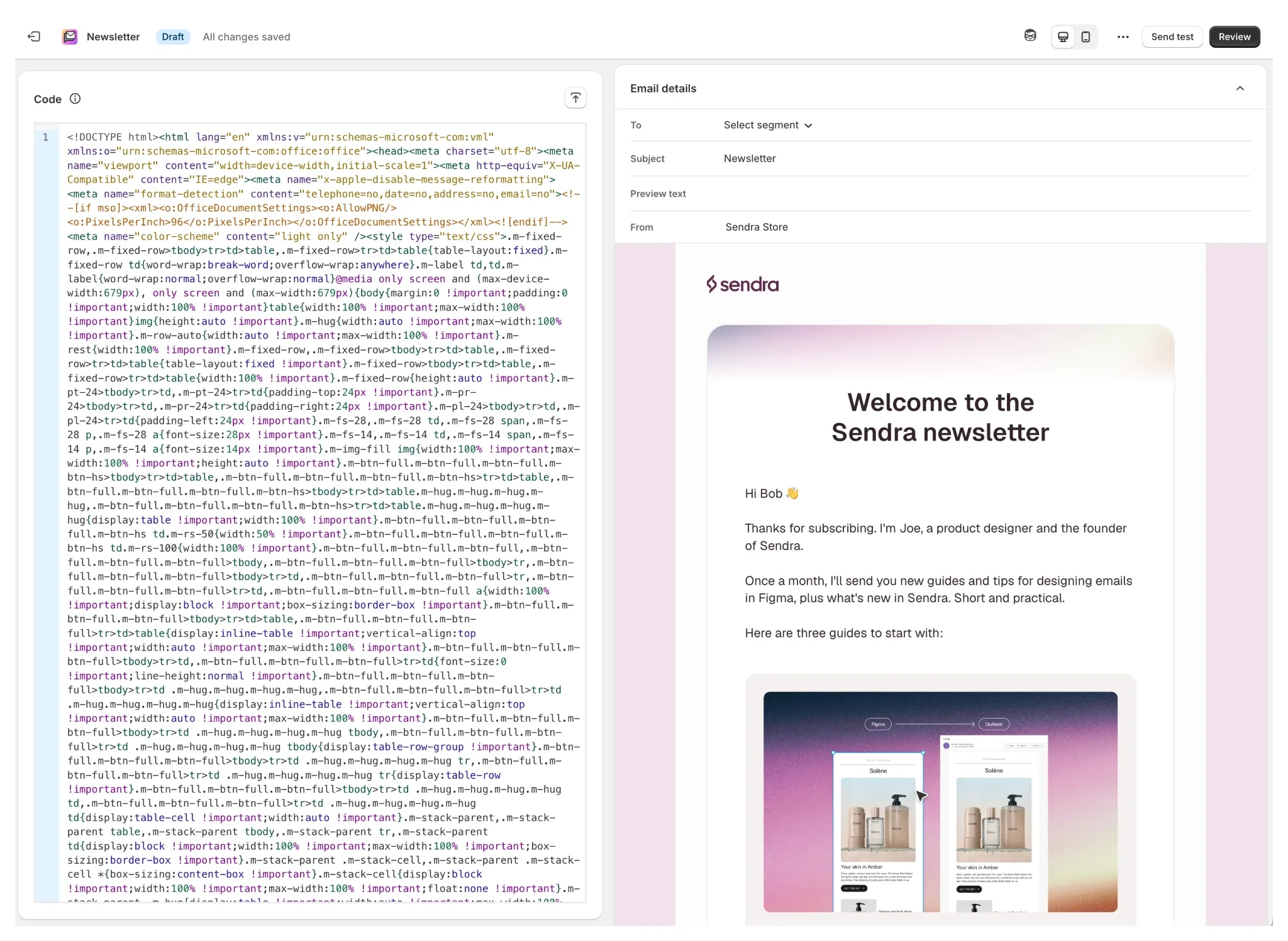
Shopify's preview shows your email right away, with a sample customer in the tags. Mine said "Hi Bob". Switch to the phone view: the rows stack the same way they do in Sendra's preview.
Choose who gets it, add a subject line, and click Send test. Test emails show the sample customer too; a real send uses each subscriber's own details. On a new store, test emails can be unavailable for a while, and at first they only go to your own address. When it looks right, click Review, then Schedule send.
If a tag is missing, Review stops and tells you: "Add {{ open_tracking_block }} variable." or "Add {{ unsubscribe_link }} variable". The second one only shows up when the email has no unsubscribe tag at all, so your {{ unsubscribe_url }} link counts.
Step 4: Save it as a template
- Open Messaging's list of campaigns.
- Click the ... menu on your email.
- Choose Save as template.
It shows up in Templates with a little code icon, ready for your next campaign.
To change the email later, change the design in Figma, export again and paste again.
Shopify or Klaviyo?
It depends on where your business is. If you're just starting out, with a new store and not many customers, there's no point paying for Klaviyo. Send from Shopify and keep everything in one place. Every paid Shopify plan includes 10,000 emails a month, then it's $1 per 1,000.
As the store grows and your emails and automations get more involved, Klaviyo does more, and that's when moving makes sense. Your designs come with you: Sendra's HTML goes into Klaviyo too.
What Sendra changes
You send the email you designed. Everything stays in Figma, where you already work. You don't fight a builder or rebuild your design, and you stay on brand. And for phones, you set the padding, the text sizes and which images show, right in Sendra.
The full steps are on the help page: Export to Shopify Messaging.
Questions people ask
Is Shopify Email the same as Shopify Messaging?
Yes. Shopify renamed Shopify Email to Shopify Messaging. Its help center calls it "formerly known as Shopify Email".
Can I use my own HTML in Shopify Email?
Yes. Click Create campaign, then Code your own, and paste it. Shopify takes up to 500 KB of code per email.
Which tags does Shopify need?
An unsubscribe tag, {{ unsubscribe_url }} or {{ unsubscribe_link }}, and {{ open_tracking_block }}.
Does it work on phones?
Yes. The rows stack on phones the way they do in Sendra's preview.
Can I send from a free trial?
No. Shopify shows "Shopify Messaging is not available with your free trial". You can still paste your email and check the preview.


